MEUM user guide
Use this page while you work in the exhibition admin. Find the right menu, prepare your files, and check what each action changes.
Account, verification & access
- Have ready
- An email address you can verify. If someone invited you, use the account associated with that invitation.
- Where to go
- Website → Log in / Sign Up; then the exhibition admin.
- Sign in, or complete Sign Up with your own account details.
- Open the verification email and follow its link. If the start screen still asks for verification, return there and choose Continue after verifying your email.
- Use your existing access, or start an eligible trial below. Open the admin and check that you are using the intended account.
Check the result: You can reach the exhibition list or the workspace you have access to.
A verification email does not itself publish an exhibition. If the email link expires, use the resend option in the start flow or your account settings.
If you need trial access, use Start free trial. The service checks eligibility and activates eligible access immediately. If you already have access, it opens the existing admin instead of starting another trial.
Free 1-month trial · Once per account · 1 exhibition · No card required or automatic payments
Create or open an exhibition
- Have ready
- The workspace you will use and, when creating a new exhibition, access that permits creation.
- Where to go
- Admin → Workspaces → Individual or your group workspace → New Exhibition.
- Choose the workspace that should contain the exhibition.
- Choose New Exhibition and follow the creation dialog. A suggested title can be changed later in Exhibition info.
- Open the new exhibition. If an organizer already assigned one to you, accept the invitation with the same account and find it under Shared with Me instead.
Check the result: The intended exhibition is selected and its setup menus are visible.
If New Exhibition is disabled, check the selected workspace, available access, and your role. You do not need to create another exhibition just to work on one that was shared with you.
Back to contentsAdd exhibition information
- Have ready
- An exhibition title, introduction, related tags, and the cover or poster images requested by the form.
- Where to go
- Selected exhibition → Exhibition info.
- Use Edit introduction to update the title and introduction. Review the Thumbnail and Poster fields and select your images where requested.
- Add at least one exhibition tag. Review Visibility so the viewing link has the access settings you intend.
- Choose Save changes and wait for the saved confirmation. You can set or review the opening dates here when you are ready.
Check the result: The title, introduction, images, tags, and visibility show the saved values.
Follow the validation shown by the form for image requirements and dates. Saving exhibition information does not open the exhibition to visitors.
Back to contentsUpload & describe artworks
- Have ready
- JPG/JPEG or PNG images, a title for each work, descriptions, and any artist credit you want visitors to read.
- Where to go
- Selected exhibition → Artwork → Upload file.
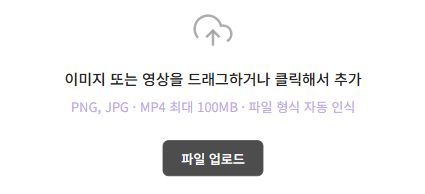
- Choose Upload file or drag your images into the upload area. Wait for each file to complete; review failed items and use Retry when offered.
- Open an artwork’s details and its edit action. Review Title and Description, add any public artist credit in the description, and confirm the changes.
- Check the full artwork list for missing or duplicate files, especially if participants already submitted work through an upload QR.
Check the result: The intended files appear in the artwork list with the right titles and descriptions.
Registered files still need to be placed in the gallery. Some artwork edit dialogs use the Korean labels 수정 (Edit) and 변경완료 (Save changes). Check the capacity and validation shown for your exhibition rather than assuming a single limit for every plan.
Optional: video artwork
Where to go Artwork → Upload file, when video upload is available.
Use an MP4 file. The current video uploader validates a maximum of 100 MB. Review the video thumbnail and playback options in the artwork dialog, then test playback in Preview.
Availability: Video upload requires video-enabled exhibition access, an editable preparation state, and editing permission. If the picker does not offer video, check the exhibition’s access and your role; do not assume every plan supports it.
Highlights and the exhibition-page order
Where to go Artwork → Show in Highlights; Artwork Order.
Use Show in Highlights to choose works for the exhibition page. In Artwork Order, use the position controls and Save Order to arrange the page’s highlights and full artwork list.
Availability: This order does not change 3D placement or the viewing route. Use Place artworks to change the spatial layout.
Optional: collect files with an upload QR
Where to go Artwork → More (…) → Get upload QR.
Set the upload period and create the collection link or QR. Share it with contributors, review the submitted works in your artwork list, and stop sharing when collection is finished.
Availability: This QR is for artwork submission, not exhibition viewing. Submitting a file does not automatically make the contributor an exhibition member or place the work in the gallery.
Select a gallery & place artworks
- Have ready
- Your uploaded works and a gallery suitable for their layout.
- Where to go
- Selected exhibition → Select gallery; then Place artworks.
- In Select gallery, choose or keep a gallery and save any change. Changing galleries loads that gallery’s saved layout, or an empty layout if it has none.
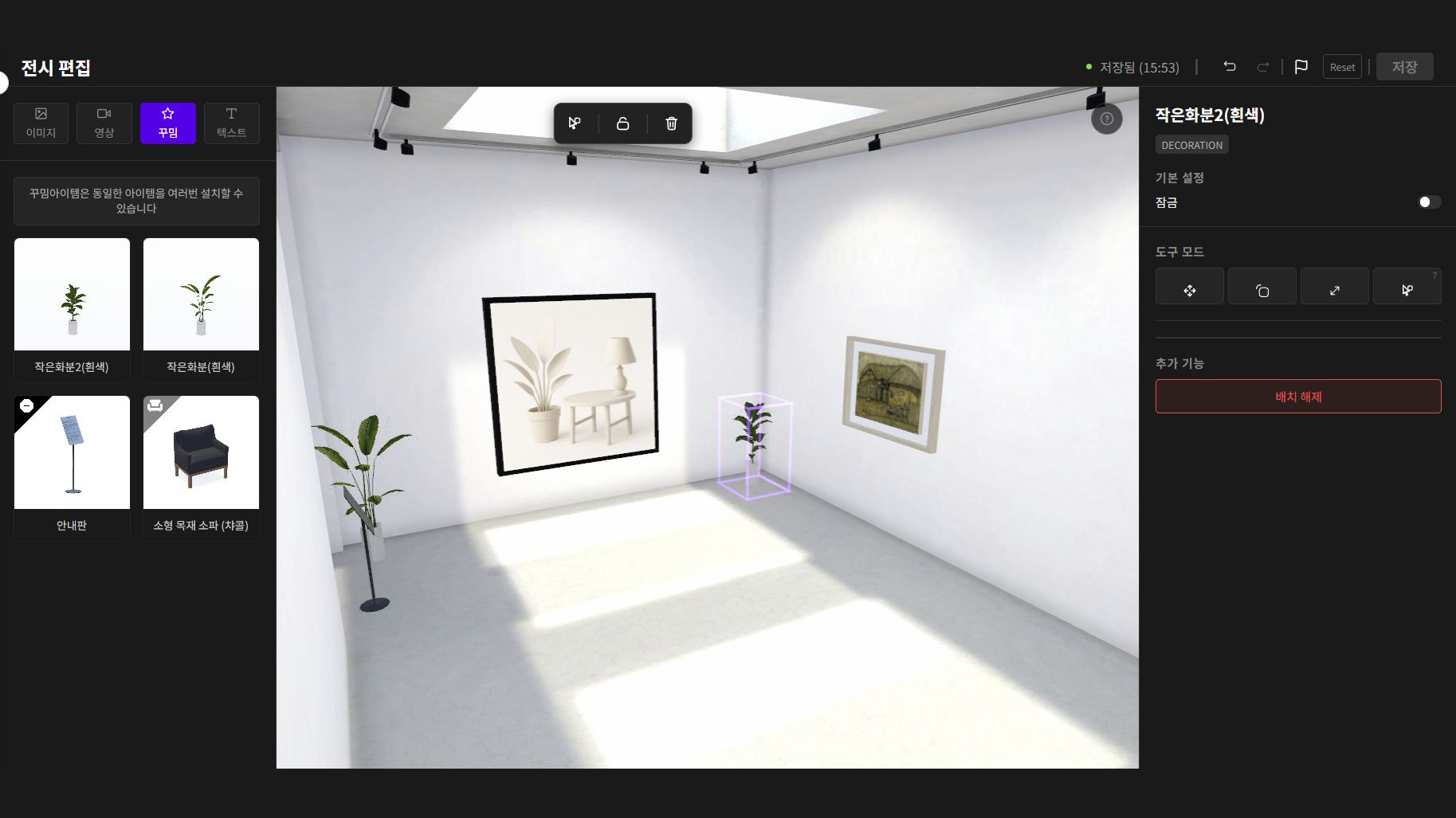
- Open Place artworks. Use the image or video asset list to select a work and place it in the gallery. Adjust its position, rotation, and size with the editor tools.
- Choose Save and wait for Saved. If Auto-install is offered, it is an alternative to placing works individually; review its confirmation before using it.
Check the result: The intended works are placed, do not overlap or sit inside walls, and the layout is saved.
You can upload files before choosing a gallery. Re-running Auto-install can change the existing layout, and availability depends on the gallery. Removing a placement from a wall is different from deleting the registered artwork.
Optional: an autoplay route
Where to go Place artworks → Autoplay Settings.
Choose the works or text items and their order, then use Save and Generate Route. Inspect the generated route in Preview and review any generation error before trying again.
Availability: Use this when your viewing mode needs autoplay. Recheck the route after a gallery or major layout change; saving a draft alone does not generate a route.
Set up artwork details, comments & roses
- Have ready
- A decision about what visitors should be able to read or do, and editing permission for the relevant settings.
- Where to go
- Selected exhibition → Viewing features; Comment Management; Place artworks for rose positions.
- In Viewing features, choose the visitor features you want and save them.
- For artwork details and comments, check both the exhibition-wide feature switches and the relevant artwork settings described below.
- If using roses, follow the editor link from Viewing features, check the positions at your placed works, and save the editor changes.
Check the result: The intended controls appear when you inspect the visitor view in Preview.
These features are optional. Turning on a switch does not replace checking its related settings, saved layout, and visitor experience.
Artwork details
Where to go Viewing features → Artwork info; Artwork → the work’s Click action setting.
Enable Artwork info and save. If a work does not open its details when selected, check its Click action setting and confirm the saved title and description.
Availability: Both the exhibition’s viewing settings and the individual artwork’s click behavior affect whether visitors can open the information panel.
Artwork comments
Where to go Viewing features → Artwork comments; Comment Management.
Keep Artwork info enabled, turn on Artwork comments, and save. In Comment Management, choose immediate publishing or approval, and review comment visibility and filter settings.
Availability: Artwork comments depend on Artwork info being enabled. With approval mode, comments are visible only after approval. Preview comments are not saved.
Rose gifts
Where to go Viewing features → Allow rose gifts → Check rose positions in the editor.
Enable and save rose gifts. Follow the editor link, check the positions for the placed artworks, and save. Check the result in Preview.
Availability: Roses follow the saved feature and placement settings. Check any availability or allowance shown in the visitor view; do not assume a fixed allowance for every exhibition.
Preview before opening
- Have ready
- Saved exhibition information, uploaded and placed works, and any optional visitor settings you want to check.
- Where to go
- Selected exhibition → Preview.
- Open Preview and use Desktop, Tablet, or Mobile, plus the orientation controls, to inspect the visitor view.
- Check the artwork list, titles and descriptions, click actions, video playback, rose positions, and the walking route or autoplay if you use it.
- Return to the relevant setup menu to fix an issue, save the change, and reload Preview.
Check the result: The intended artworks and visitor controls work as expected in the preview.
Comments, guestbook entries, chats, quiz responses, and rose interactions in this preview are not saved. Preview is a viewing check, not proof that a real visitor interaction was recorded.
Back to contentsOpen the exhibition & share links or QR codes
- Have ready
- Saved required information, at least one uploaded and placed work, the intended opening period, and permission and access to open the exhibition.
- Where to go
- Exhibition info → opening dates; opening control at the bottom of the admin sidebar; Share/QR.
- Review the opening period in Exhibition info. Choose the immediate-opening option or set a schedule where available, then save the changes.
- Use Open exhibition now or Schedule opening when available. Some exhibitions show Ready to open instead. If the control is disabled, review the missing preparation items and ask an owner or admin if you do not have opening permission.
- Open Share/QR. Select Exhibition Page, Mobile Invitation, or Direct Viewer Link for the destination you want, then use Copy Link or Download QR Code.
- After the exhibition opens, check the final viewing link on a visitor’s device before distributing it.
Check the result: The exhibition status and dates are correct, and the shared link opens the intended visitor destination.
Viewing links and QR codes are different from the admin URL and the upload QR used to collect files. You can prepare sharing materials before opening, but visitors still need the exhibition to be open and must meet its entry settings.
Find the cause of a common problem
New Exhibition or a setup control is unavailable
Check the chosen workspace, your role, the exhibition’s current status, and available access. A view-only account cannot use editing controls. An open exhibition may need an authorized owner or admin to return it to editing before changes can be made.
An uploaded work is missing from the 3D gallery
Confirm that the upload completed, then place the work in Place artworks and save the layout. Uploading a file only registers it. If you changed galleries, check the saved layout for the selected gallery.
Details, comments, or roses do not appear
Check Viewing features and save the switches. For details, check the work’s Click action. Comments also need Artwork info and the chosen visibility policy. For roses, inspect the editor positions. Reload Preview after saving.
The viewing link is not ready for visitors
Check that the exhibition has actually opened, its opening dates, and its entry settings. Use a destination from Share/QR rather than an admin URL or upload QR. Preparing an invitation does not publish the exhibition.
For page-specific tips, use Help / Screen guide in the admin. If you still need help, include the exhibition title and the on-screen error when contacting info@meum.me